Using the QTF Manager App


What is QTF Manager?
The QTF Manager app is a self-service tool in the Utilities folder on your loved one’s QuickTalker Freestyle.
With it, you can:
- Change your loved one’s speech app
- Start or renew a subscription for their speech app, if one is required
- Access AbleNet’s Support Hub
- Contact AbleNet’s support team

Opening the App for the First Time
When you open the app for the first time, you’ll be asked to create a Device Manager code.
- Open the QTF Manager App.
- Create a 5-digit Device Manager code.
- You may want this to be different from your device Passcode to prevent user changes.
- Complete the math problem to continue (this prevents users from tampering with devices without guidance).
- You’re in!
The Management Dashboard at a Glance
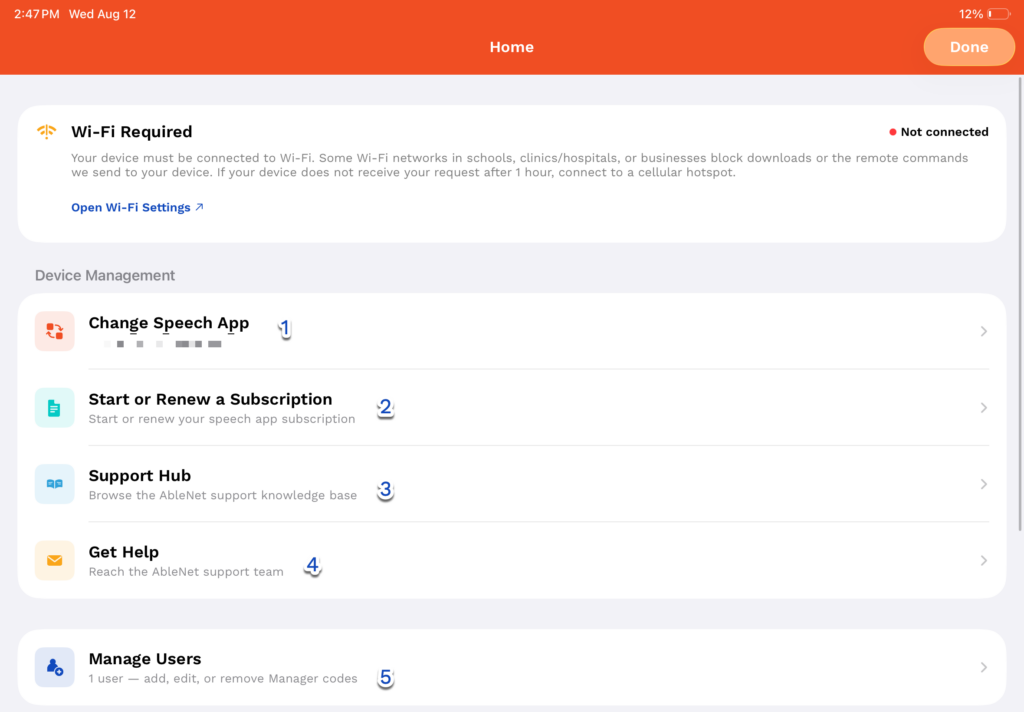
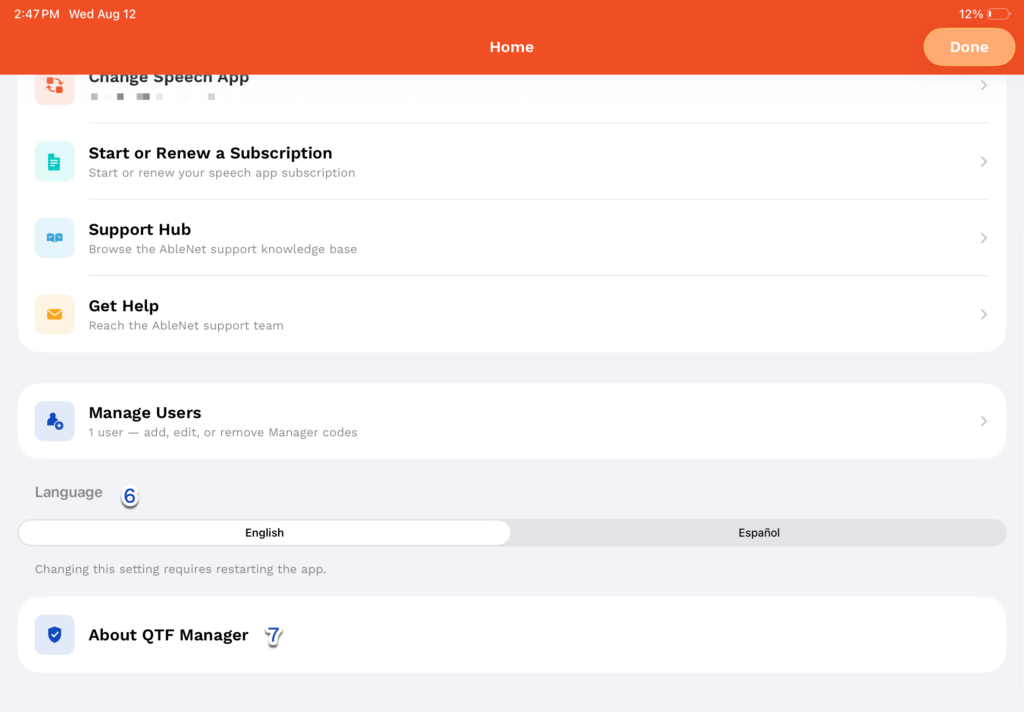
Once you enter your Manager Code, you’ll land on the main dashboard. This is home base for everything QTF Manager can do:
- Change Speech App: add, change, or remove the speech app(s) assigned to this device (covered below).
- Start or Renew a Subscription: for subscription-based speech apps, start or renew a subscription without calling in.
- Support Hub: browse the AbleNet support knowledge base right from the device.
- Get Help: reach the AbleNet support team directly.
- Manage Users: add, edit, or remove caregiver profiles and Manager Codes (covered below).
- Language: switch the app between English and Español (requires a quick restart to take effect).
- About QTF Manager: see the app version and your device’s serial number, and, if you ever need to, remove QTF Manager from the device entirely.
The dashboard also shows a Wi-Fi warning if your device isn’t connected, since most actions need a connection to reach AbleNet. When you’re done, close out of the dashboard (or simply stop using the device) and you’ll return to the PIN screen after a short period of inactivity.
Speech App Management
Both of these require a Wi-Fi connection. The form can’t load or be submitted without one. Make sure your device is connected before you start.
Adding or Changing a Speech App
- Open QTF Manager and enter your Device Manager Code.
- On the dashboard, tap Change Speech Apps.
- You’ll see a reminder to back up your current app data before continuing, back up your app and tap through when you’re ready.
- A form opens inside the app. At the top of the screen you’ll see your device’s current speech apps and its serial number (See Image 2).
- You may be asked for the serial number if you contact AbleNet support, so it’s shown here for easy reference.
- Select Speech App 1 or Speech App 2 depending on which slot you’d like the new app to live in.
- Fill out the form: your FN number, the app you want, and accept the license agreement (EULA) if prompted.
- Submit the form. QTF Manager takes it from there. You’ll see a confirmation screen once your request is recorded.
You don’t need to do anything else. The change is sent to AbleNet’s device management system and applied automatically the next time your loved one’s device connects to Wi-Fi, usually within a few minutes. Should your Wi-Fi drop while trying to update, QTF Manager will keep trying automatically in the background. You can leave the screen and it will finish on its own, or tap Retry Now once you’re back on Wi-Fi.
- Note: Submitting the form always sets the app for the “Speech App 1” or “Speech App 2” slot to whatever you selected. It fully replaces (overwrites) what was there before, whether the slot was empty or already had an app in it.

Removing a Speech App
You can also clear a speech app slot without adding a replacement, leaving the slot empty.
- Open QTF Manager, enter your Device Manager Code, and tap Change Speech App, the same as adding or changing an app.
- In the form, choose the option to remove an app, and indicate which slot(s): “Speech App 1,” “Speech App 2,” or both.
- Submit the form. You’ll see an “App Removed” confirmation screen listing which slot(s) were cleared.
You don’t need to do anything else. As with adding an app, the change is applied automatically the next time the device checks in — the cleared Speech App 1 or 2 slot will show no app assigned. If your Wi-Fi happens to drop right after you submit, QTF Manager retries automatically in the background. You can leave the screen and it will finish on its own, or tap Retry Now once you’re back on Wi-Fi.
Managing Your Manager Code and Users
Every caregiver, SLP, teacher, or other approved person who needs access to this app has their own Manager Code: a 5-digit PIN tied to their own profile (name, icon, color, and role).
Any valid Manager Code unlocks the same dashboard and can approve the same actions, including adding another user. There’s no separate “admin” code beyond the original master code AbleNet set up for the device, which still works alongside everyone’s individual codes as a backup.
From the dashboard, tap Manage Users to see everyone with access. From there you can:
- Add a user: tap Add User, enter any existing Manager Code to confirm, then set up the new person’s name, icon and color, role (SLP, Caregiver/Parent/Guardian, Teacher, or OT/PT), and their own 5-digit code.
- Edit a user: tap their name to change their name, icon, color, or role.
- Change someone’s code: from their edit screen, tap Change Manager Code to set a new PIN for them.
- Remove a user: swipe left on their name (or tap Edit in the top corner) and confirm the removal. This permanently deletes that person’s code; they’ll need to be re-added to regain access.
Uninstalling QTF Manager App
If you no longer need self-service access — for example, your loved one is moving to a new device — you can remove QTF Manager yourself.
- From the dashboard, open the About screen and tap Remove App.
- Read the warning carefully. Removing the app means you’ll need to contact AbleNet if you want it reinstalled later.
- Type DELETE in the box to confirm, then tap Remove App.
- You’ll see a confirmation that the removal request was sent. The app will be removed from the device shortly after it next checks in.
Reinstalling QTF Manager App
If QTF Manager has been removed and you’d like it reinstalled, contact ableCARE.
Have your loved one’s device serial number ready if you have it (see the Speech App Management section above, or the About screen). It helps ableCARE find the right device faster.
Still Stuck?
The ableCARE Product Support Team is here to help!