


Here’s what is on your QuickTalker Freestyle
Now let’s turn your device on and take a look around. When the screen lights up, follow any onscreen prompts, then you can tap and swipe to explore, a lot like using a phone. There’s no wrong way to poke around; take all the time you need to get comfortable.
- Find the power button on the top edge of your device. If you’re not sure which one it is, visit the Get to Know Your Device page.
- Press and hold the power button for a few seconds.
- When the Apple logo appears on the screen, you can let go.
- Wait a moment while your device starts up. The screen will brighten and you’ll see it come to life.
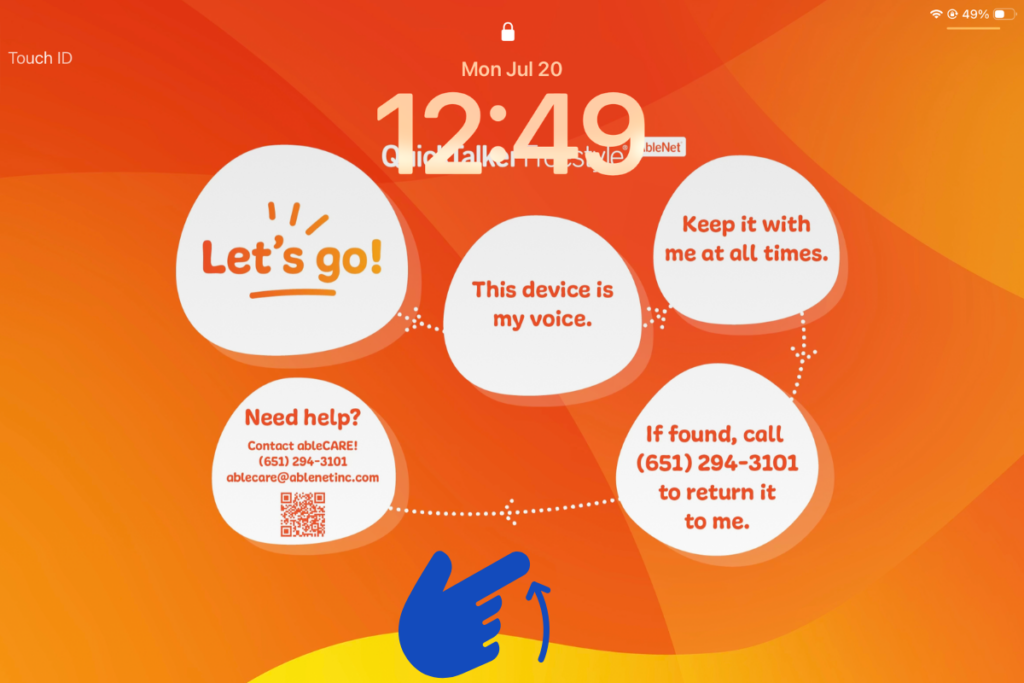
- Place your finger at the very bottom edge of the screen and swipe up to unlock your device (See Image 1). You’ll land on the home screen.
- Follow any onscreen prompts that may appear.
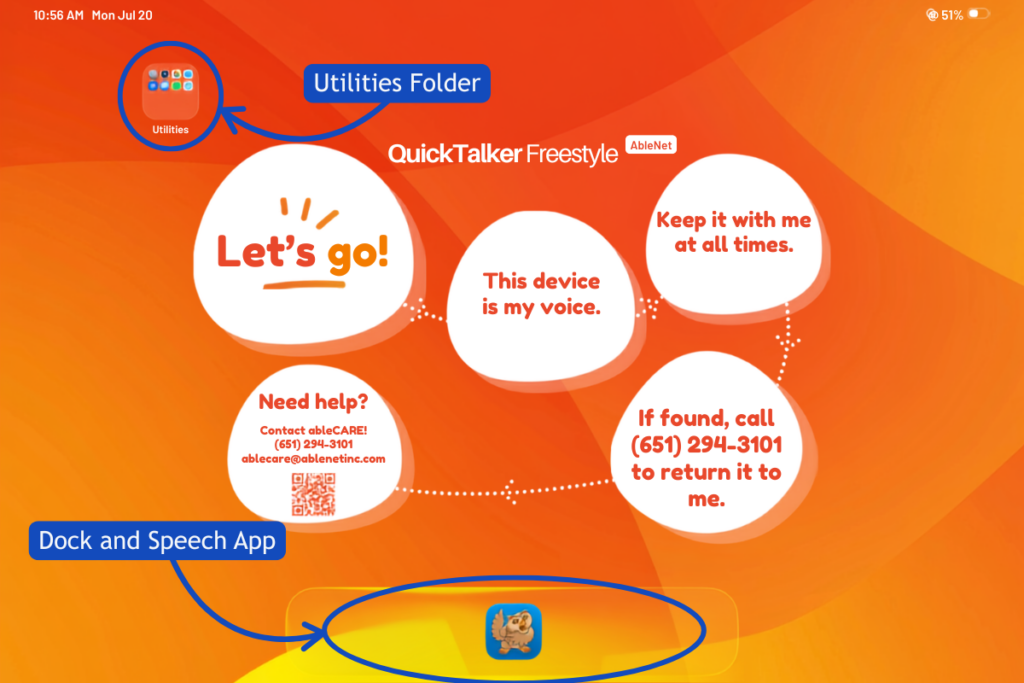
- Look to the top left corner and you’ll see a folder called Utilities (see Image 2). Tap it to find handy tools like Settings, Dropbox, and the camera.
- Now look along the bottom of the screen. This row is called the Dock (see Image 2), and it keeps your speech app within easy reach.
- Take a moment to explore. You can tap on any app to open it and swipe to move between screens, so feel free to look around and get comfortable.
Looking for other apps?
While it may look like a standard tablet, a dedicated AAC device has key differences that make it uniquely suited for communication:
- Restricted access to system apps and the App Store to maintain focus on communication
- Remote management to ensure the AAC app stays updated and functional
- Locked settings to prevent accidental deletion or changes that could impact communication
These features ensure the device remains reliable and accessible, always ready for communication. Learn more about why your device should only be used for communication.
Need some help?
Setting up a new AAC device can feel a little overwhelming. If something isn’t working or you’re not sure what to do next, our ableCARE team is here to help.