


Follow these steps to connect to Wi-Fi
Next, let’s get your device connected to the internet. A Wi-Fi connection keeps your device up to date and ready when you need it. The steps below will help you find your network and enter your password.
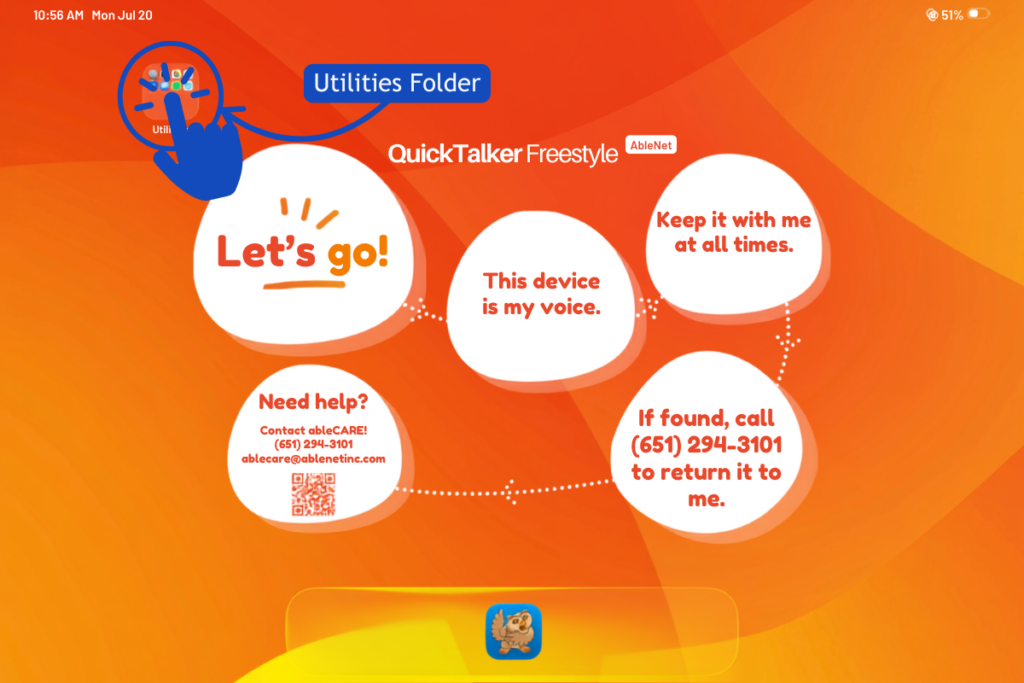
- Tap the Utilities folder in the top left corner of your screen (see Image 1).
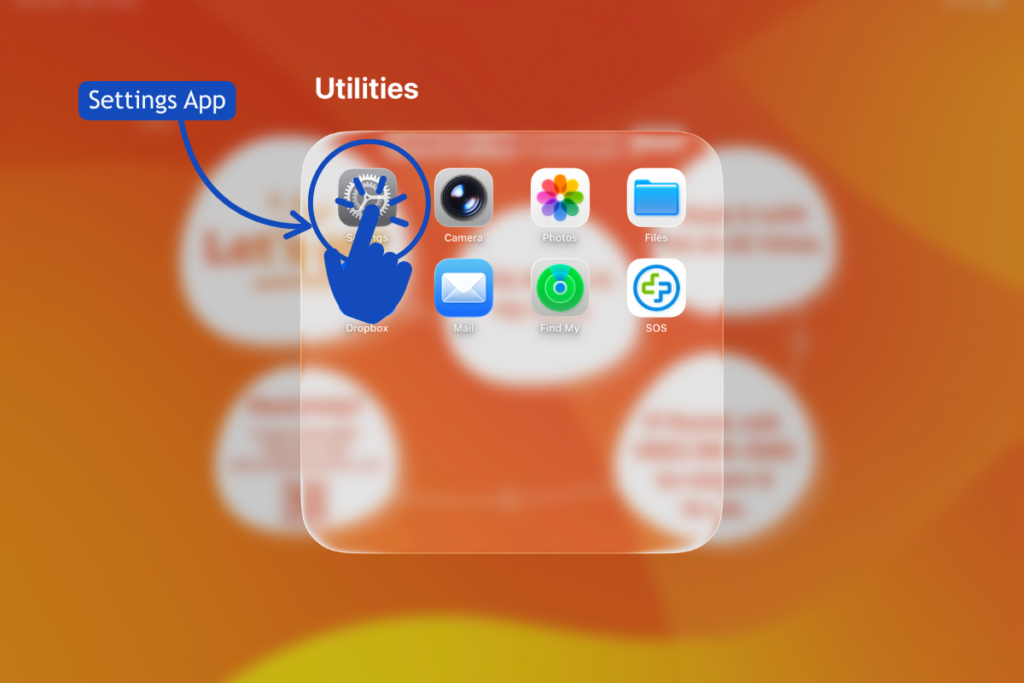
- Tap the Settings app; it looks like a gear (see Image 2).
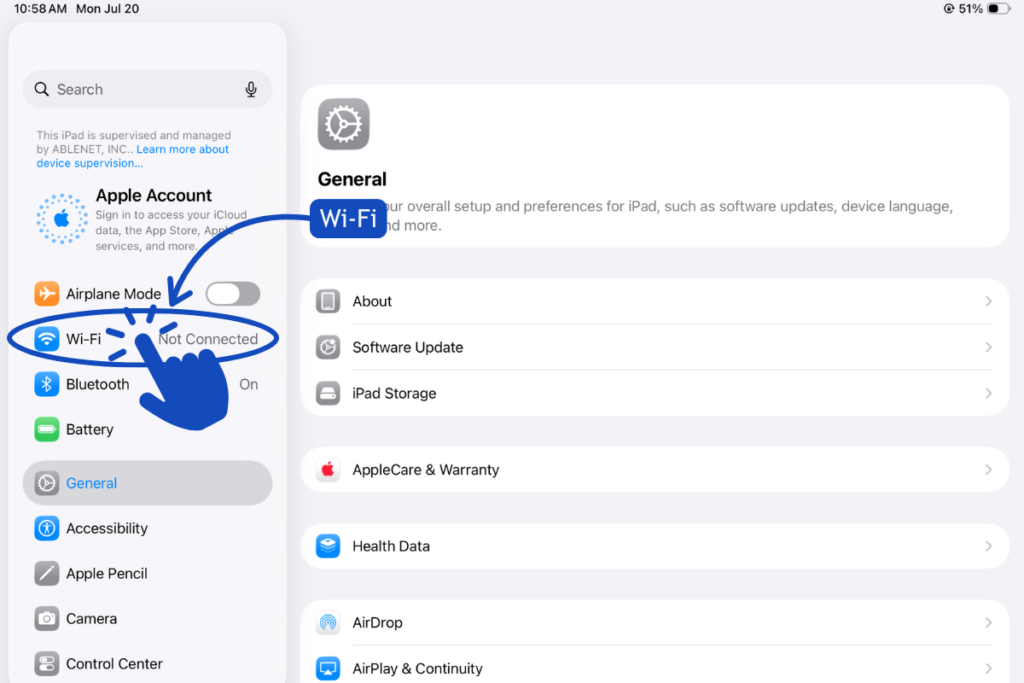
- In the list on the left, tap Wi-Fi (see Image 3).
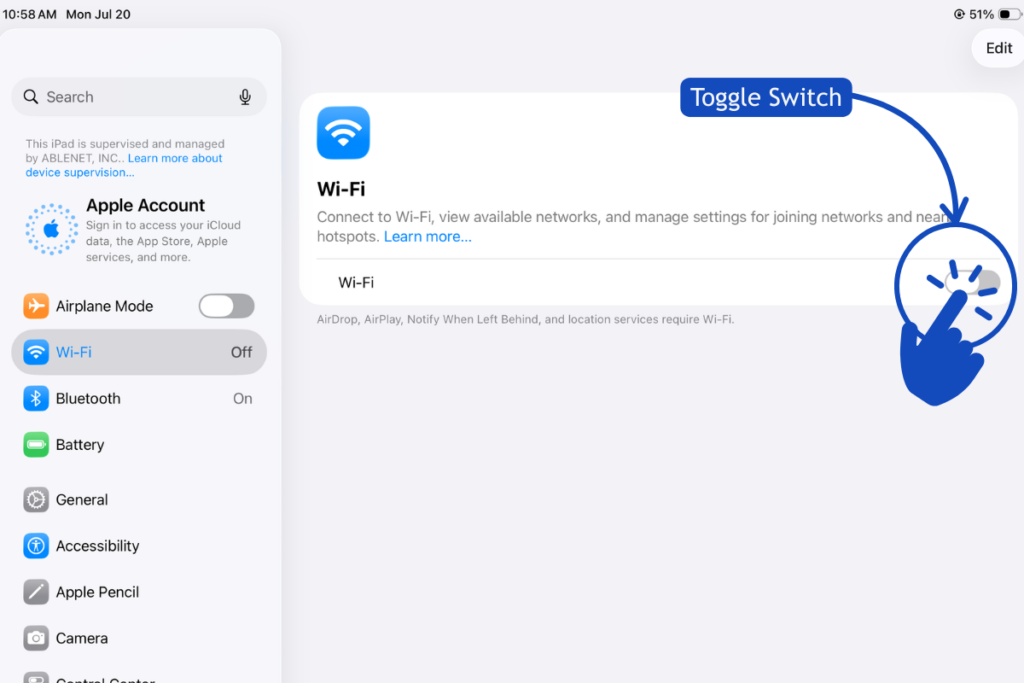
- Tap the toggle switch so it shows green (see Image 4).
- Your device will show a list of nearby networks. Find the name of your network and tap it.
- Type in your Wi-Fi password, then tap Join.
- Passwords are case-sensitive, so double-check your capital and lowercase letters.
- When you see a checkmark next to your network name, you’re connected.
- Swipe up from the bottom of the screen to exit Settings and you’re all set.
Need some help?
Setting up a new AAC device can feel a little overwhelming sometimes. If something isn’t working or you’re not sure what to do next, our ableCARE team is here to help.