What is Windowing in iPadOS 26


What is Windowing? 🔗
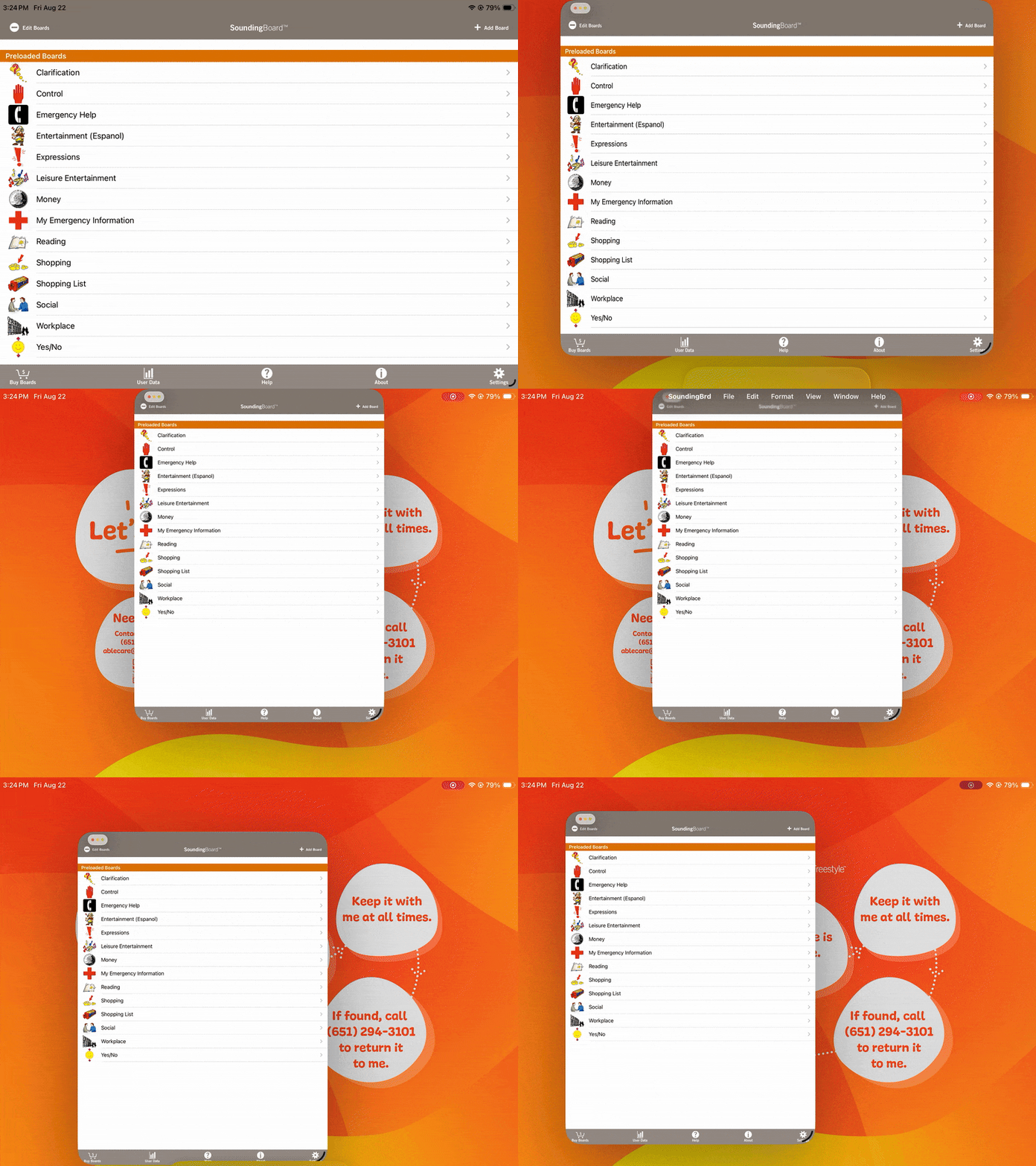
Windowing allows users to resize their apps in a similar experience to Mac or Windows. It’s a new feature for iPad introduced in iPadOS 26 and is standard. Which means if you do upgrade, your iPad will have it automatically set to on. See an example below.
Should I Use Windowing? 🔗
The decision to implement windowing ultimately rests with the client and their support circle. To support this decision-making process, we’ve outlined key pros and cons below that will help you evaluate whether windowing aligns with your specific requirements and objectives.
Pros of Windowing🔗
- Improved Access to Communication & Other Needs
- Windowing allows an AAC app to remain open alongside other apps, such as YouTube, a parent-coaching tool, or a therapy activity. For example, Proloquo (subscription) and Proloquo Coach could be displayed side by side, helping parents learn and support their child’s communication.
- Better Multitasking
- Older students may benefit from having their AAC system visible while also referencing a lesson, presentation, or task on the same device, reducing the need to switch back and forth.
- Opportunities for Personalization
- Users can arrange their AAC display alongside other apps in ways that fit their personal communication style and needs.
- Support During AAC Trials
- Windowing makes it possible to display two AAC apps at once, helping children and adults compare features and determine which system best meets their needs.
Cons of Windowing 🔗
- Risk of Accidentally Closing or Hiding the AAC App
- Many children may not understand windowing and could unintentionally minimize or close their AAC system, leading to communication breakdowns and frustration.
- Reduced Sense of Device Dedication
- Early in their AAC journey, many users benefit from seeing their device as a tool for communication only. Allowing multiple apps at once may blur this understanding, making it harder to establish consistent device use for speech. For more information about this, please read this article: “Where’s Youtube?” Why Your Child’s AAC Device Is Built Just for Communication.
- Accessibility Barriers
- For users with motor or cognitive challenges, independently managing multiple windows may be difficult. Many will require adult support to ensure the AAC app remains accessible and visible.
To turn Windowing off or on, you can follow these steps:🔗
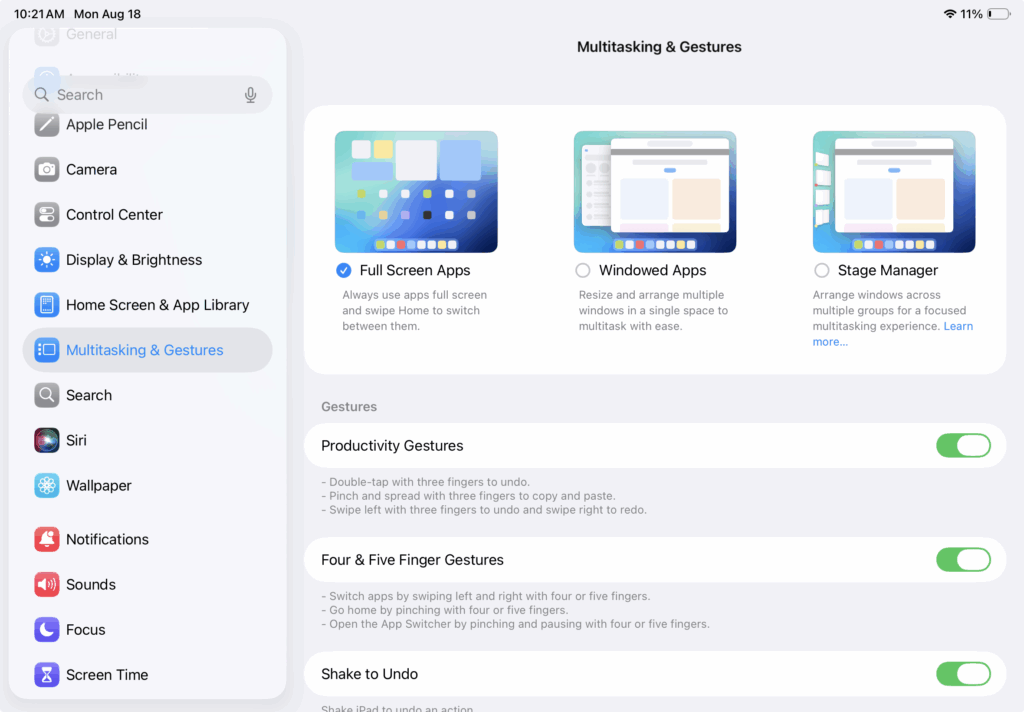
- Go to Settings
- Click on Multitasking & Gestures on the left menu bar
- On this menu, you’ll see three options of windows management at the top of this page.
- By default, your device should be on Windowed Apps. If this is correct, then you can select Full Screen Apps to turn off the feature.
- If you are looking to turn it on, simply select Windowed Apps.
Need More Help?🔗
If you’re still having issues regarding Windowing, please contact the ableCARE Product Success Team for more support.