
How to Restore Your Original QuickTalker Freestyle Wallpaper




If you changed your wallpaper on your QuickTalker Freestyle speech device and want to go back to the original, you can download it below! Follow the instructions below to apply the wallpaper.
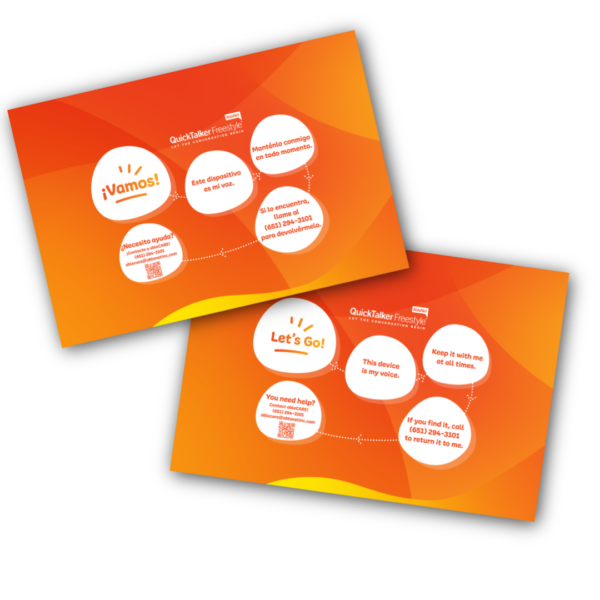
Downloads are available in English and Spanish.
Transfer Instructions🔗
Please note that the videos below show our custom quickBACKGROUND designer, however the transfer steps are the same.
Mac Transfer (via Airdrop)
- Make sure that both devices are on the same network and Bluetooth enabled
- Go into settings on both devices, search for Airdrop, enable to everyone for 10 minutes
- Downloaded the wallpaper onto your Mac
- Select the photo and choose Airdrop
- You will see the device show up as an option, select the device
- On the QuickTalker Freestyle accept the Airdrop
- Press the share button (box with an up arrow)
- Scroll and select use as Wallpaper
- Select add in the top right, Set as Wallpaper Pair
- Your lock screen and home screen wallpaper will change
Mobile Transfer iOS (via Airdrop)
- Make sure that both devices are on the same network and Bluetooth enabled
- Go into settings on both devices, search for Airdrop, enable to everyone for 10 minutes
- Download the wallpaper file to your files folder then go to your files app and tap on the photo
- Go to the photo app and select the photo and choose Airdrop
- You will see the device show up as an option, select the device
- On the QuickTalker Freestyle accept the Airdrop
- Press the share button (box with an up arrow)
- Scroll and select use as Wallpaper
- Select add in the top right, Set as Wallpaper Pair
- Your lock screen and home screen wallpaper will change
PC Transfer (via Dropbox)
- Sign into Dropbox in the web or through the downloaded app
- Download the wallpaper file to your desktop, then drag the file into Dropbox
- You can now log into Dropbox on your QuickTalker Freestyle and select the image
- Select the 3 dots in the top right
- Save image
- Allow full access
- Go to the photo app on the QuickTalker Freestyle and select the image
- Press the share button (box with an up arrow)
- Scroll and select Use As Wallpaper
- Select Add in the top right, Set as Wallpaper Pair
- Your lock screen and home screen wallpaper will change
Mobile Transfer Android (via Dropbox)
- Sign into Dropbox in a web browser or through the downloaded app
- Download the wallpaper file to your phone files
- Then open Dropbox and click add new file and select your wallpaper and hit add
- You can now log into Dropbox on your QuickTalker Freestyle and select the image you just uploaded
- Select the 3 dots in the top right
- Save image
- Allow full access
- Go to the photo app on the QuickTalker Freestyle and select the image
- Press the share button (box with an up arrow)
- Scroll and select Use As Wallpaper
- Select Add in the top right, Set as Wallpaper Pair
- Your lock screen and home screen wallpaper will change
Still Stuck? 🔗
The ableCARE Product Support Team is here to help!
