
Changing a trusted phone number


In this article, we explain how to change the trusted phone number associated with your QuickTalker Freestyle Apple ID account. This change will enable you to use a different primary phone number than the one originally used to create the account.
Required Items🔗
- QuickTalker Freestyle Device (Optional)
- QuickTalker Freestyle Apple ID Account
- Available Phone Number
- Wi-Fi Connection
Changing the Trusted Phone Number🔗
On the QuickTalker Freestyle 🔗
- Open Settings: Open the settings app on your QuickTalker Freestyle
- Tap on your name at the top
- Select Sign-in & Security
- Choose Two-Factor Authentication
- Tap “Edit” above the list of trusted numbers
- Tap “Add a Trusted Phone Number” and add the desired number
On the Web🔗
- Go to account.apple.com and sign in.
- Once signed in, click on “Sign-in & Security.”
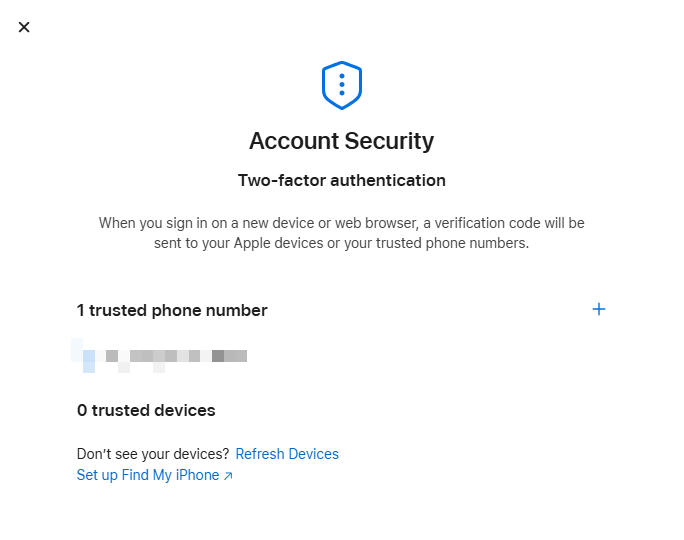
- Click on “Account Security.”
- The “Trusted Phone Number” section allows you to add, remove, or edit your trusted phone numbers.
Tips and Troubleshooting🔗
If you don’t see the “Two-Factor Authentication” Option:🔗
Make sure you’re signed in with the correct Apple ID. If the account is not set up with two-factor authentication, you may need to enable it first. Follow Apple’s two-factor authentication setup guide.
If you no longer have access to the old trusted phone number🔗
You can still add a new one, but you may need to verify your identity using other methods (such as answering security questions or using a trusted device). If you’re locked out, visit Apple’s account recovery page for help.
Trusted phone number can be mobile or landline:🔗
Apple will send a verification code through text message or an automated voice call. Ensure that the phone number you add can receive one of these types of notifications. You can add multiple trusted phone numbers. It’s a good idea to include a backup number, such as a family member or caregiver’s, in case you lose access to your primary phone.
If you have any additional questions, please contact the ableCARE Product Success Team for further assistance.
Was this article helpful?
3 of 4 found this helpful
