
Creating Custom Symbol Overlays With Canva


Summary🔗
This article walks you through creating custom symbol overlays for AbleNet devices using Canva and blank symbol overlay templates.
This is a good option for users who do not have access to the AbleNet Symbol Overlay Maker app for iPad and Mac. By following these steps, you can personalize your device with symbols tailored to your needs.
Estimated completion time: 20–30 minutes.
Required Items🔗
- A Computer with internet access
- A blank overlay template PDF
- Images
- A free Canva account
- Access to a printer
Instructions🔗
Download Your Blank Overlay Template🔗
To create your custom overlay, first download a blank PDF template for your device’s matching layout. You can find these blank overlays on the Getting Started article for your device here on the Support Hub.
Download Your Speech Device’s Blank Overlay
- BIG Step-by-Step Blank Overlay
- LITTLE Step-by-Step Blank Overlay
- BIGmack Blank Overlay
- LITTLEmack Blank Overlay
- BIG TalkingBrix Blank Overlay
- TalkingBrix 2 Blank Overlay
- iTalk2 Blank Overlay
- iTalk4 Blank Overlay
- QuickTalker FT 7 Blank Overlay
- QuickTalker FT 12 Blank Overlay
- QuickTalker FT 23 Blank Overlay
Download Your Desired Images🔗
You can download free AAC symbols for your layout using the following websites:
You can also use images (including photos) that you already have on your computer.
Design Your Overlay With Canva🔗
We recommend using Canva to create your custom overlay. If you prefer a different PDF editor, feel free to use it; but, the steps may vary.
- Open Canva.
- Create a free Canva account or log in using an existing Google account.
- Once on the Canva dashboard, click on Projects in the left toolbar.
- Click Create a design.
- In the pop-up window, select Upload from the left menu.
- In the upload panel, click Upload files.
- Select and upload your speech device’s matching template PDF.
- Click on the imported design file to open your project.
Add Images to Your Blank Overlay Template in Canva🔗
Once you have created a new project in Canva that has your blank overlay, you’re ready to add images.
- In your Canva project, click on Uploads in the sidebar.
- Click on Upload files and select all your desired symbol files.
- Once your symbols are uploaded, drag and drop them into your desired cells. You can resize, flip, and adjust your symbols as needed.
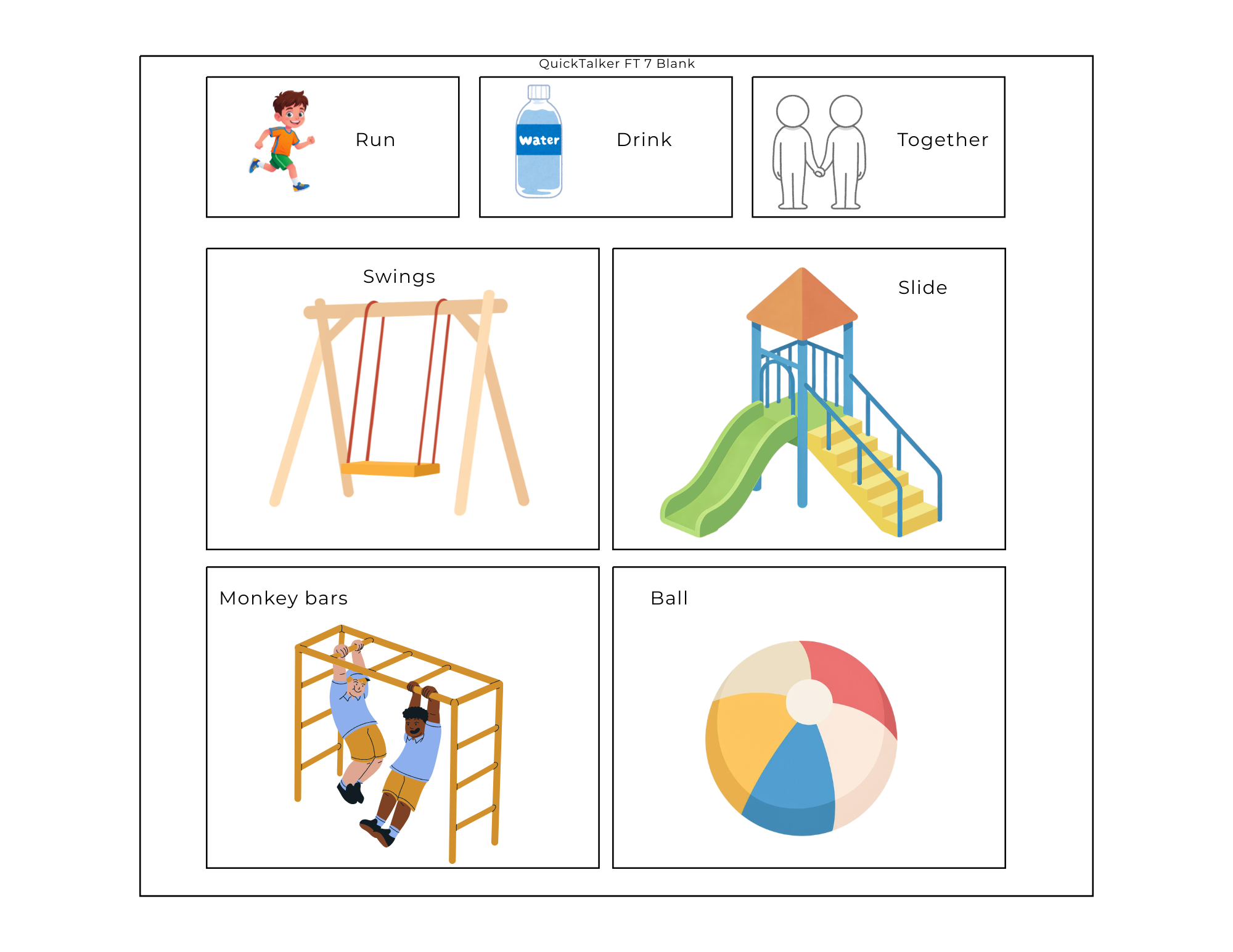
Download Your Overlay🔗
Once you have your layout configured to your liking, you will want to download it from Canva.
- Click on Share in the top right corner.
- Click Download.
- Choose PDF Print as the file type for high-quality printing.
- Click Download to save the layout to your computer
Print Your Overlay🔗
After downloading your layout:
- Locate the file on your computer (it is likely in your downloads folder).
- Right-click the file and select Print.
- Ensure your printer settings are correct and print the layout.
Additional Tips and Troubleshooting🔗
- No Printer Access? Visit a local library or retail store offering printing services.
- Symbol Clarity: Make sure symbols are high-resolution so they remain clear when printed.
- Alignment: Use Canva’s alignment tools to center symbols within each cell.
- Saving Work: Regularly save your Canva project to prevent data loss.
Still Stuck? 🔗
The ableCARE Product Support Team is here to help!
