
How to Connect BIGmack to External Devices Using Toy/ Appliance Connection


Summary🔗
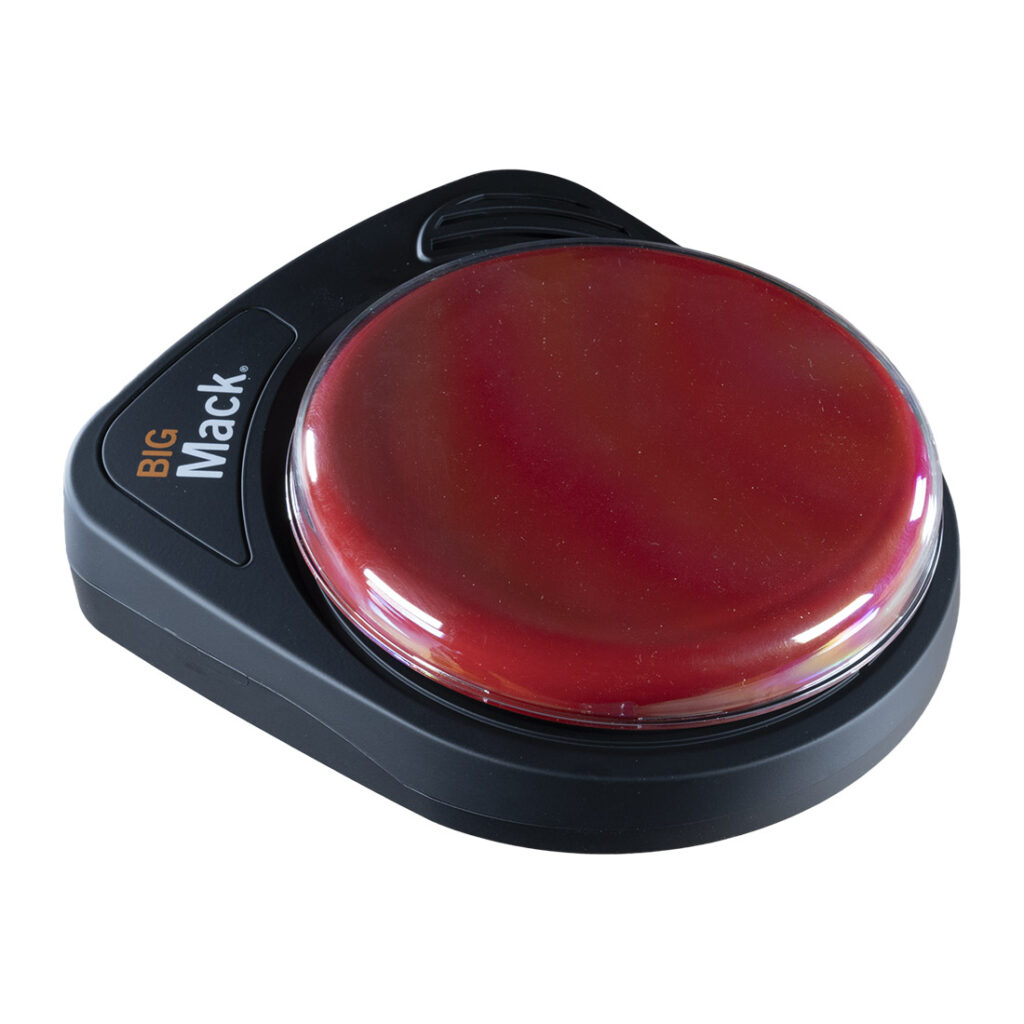
The BIGmack can be a switch to activate a toy, appliance, or computer/tablet. This guide will walk you through the steps to connect your BIGmack to a device that accepts a 3.5mm mono plug input and teach you how to use a switch interface to connect it to a computer or tablet.
Required Items🔗
Before starting, gather the following items:
- BIGmack device
- A new 9V battery
- Supplied 3.5mm male-to-male mono cable
- A device that accepts a switch input (toy, appliance, or switch interface for computers/tablets)
- (For computer/tablet setup) A switch interface is available here
Instructions🔗
Connecting BIGmack to a Toy or Appliance🔗
- Insert a 9V battery.
- Use new, regular alkaline batteries for best results.
- Turn the device on.
- Rotate the volume control to the right. The RED LED will come on for a few seconds confirming the device is on.
- Record a Message.
- Start Recording: Press and hold the record button on the back of the device below the LED light until the light turns solid red, then let go.
- Speak Your Message: Press and hold the top of the main switch down while speaking your message for 3–5 seconds. Release when done.
- Save Your Message: Press and release the record button once to save your message.
- Connect the BIGmack to the Toy or Appliance.
- Connect the BIGmack to your toy or appliance using the 3.5mm mono cable, one end into each device.
- Test the Connection.
- Activate the switch to hear your message and confirm the toy or appliance activates for the duration of the message.
Connecting BIGmack to a Computer or Tablet🔗
Complete Steps 1–3 from the above section before continuing.
- Connect BIGmack to a Switch Interface.
- Connect the BIGmack to your switch interface using the 3.5mm mono cable, one end into each device.
- Test the Setup.
- Activate your switch to hear your message and confirm the switch interface responds accordingly.
- Finalize the Setup.
- Configure the switch interface for your computer or tablet according to the provided instructions.
Tips and Troubleshooting🔗
- The BIGmack requires a recorded message to function as a switch. Consider using the Big Red or Jelly Bean switches if you prefer a direct switch.
- Check the battery, cable connections, and device compatibility if the connected device does not activate.
If you have additional questions, please contact AbleNet’s ableCARE Product Success Team.
