
How To Change Video Language


Instructions – Vimeo🔗
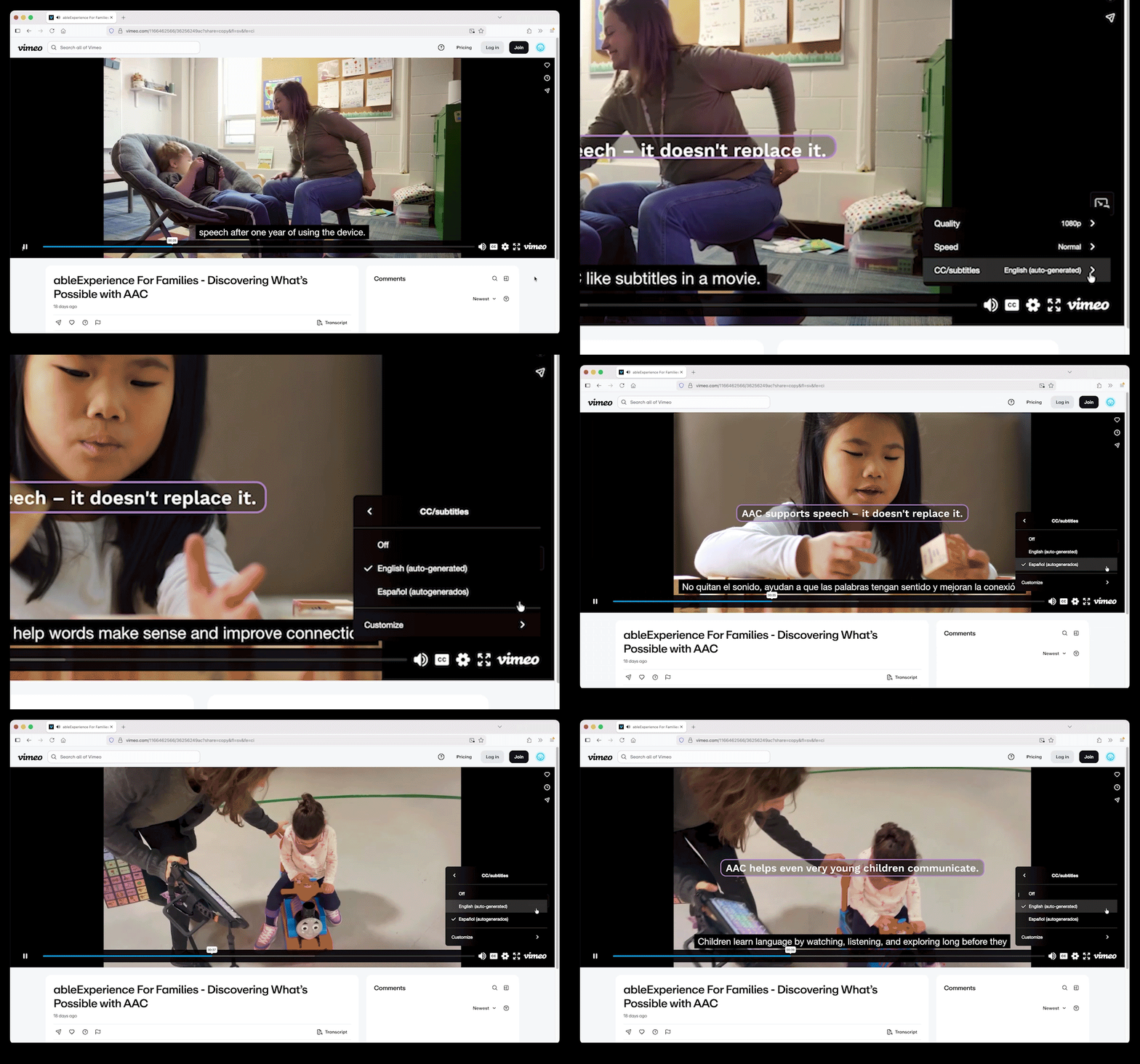
To change the language for AbleNet YouTube videos follow these steps:
- Select the “CC” button in the bottom right corner of the video player to enable captions
- Select “CC/Subtitles”
- Select your preferred language (auto-generated)
At this time English and Spanish are the only available languages, please fill out our feedback form to let us know if you’d like your language to be added.
Instructions – YouTube🔗
To change the language for AbleNet YouTube videos follow these steps:
- Select the “CC” button in the bottom right corner of the video player to enable captions
- Select the settings icon (gear icon) next to the “CC” button
- Select “Subtitles/CC”
- Select “Auto-translate”
- Choose your preferred language
Your video will now display captions in your preferred language.
Note: Auto-translated captions are generated automatically and may not be as accurate as original captions.
If you have any additional questions or are having issues with this, please contact the ableCARE Product Success Team or call (651) 422-9411 for further assistance.
