


If you want your QuickTalker Freestyle to be louder, you can connect a Bluetooth speaker. This guide shows you how to pair a speaker and attach it to your device.
Before You Begin
- A Bluetooth speaker.
- If you’re using your own speaker, check with the ableCARE team that it will work with your device.
- Don’t have one? Get a speaker by submitting an accessory request.
Pair Your Bluetooth Speaker
Follow the steps or watch the video below to connect a Bluetooth speaker to your device. Although some products in the video look different, the steps remain the same.
- Turn on your Bluetooth speaker.
- Open Settings on your QuickTalker Freestyle.
- Select Bluetooth.
- Under “Other Devices,” tap the name of your speaker.
- Turn up the volume, then open your Speech App. Tap a button on a board to test the sound. The sound should now come from the speaker.
Switch Sound Back to Your Device
After initial pairing, sound will play through the speaker automatically when it’s turned on. To play sound through the device instead, you can either:
- Turn off the Bluetooth speaker. Sound switches back to your device’s own speakers automatically.
- Unpair the speaker from your device.
- Open Settings, then select Bluetooth.
- Tap the name of the speaker.Tap Forget This Device and then tap Forget Device in the pop-up.
- Your speaker is now unpaired and will not play sound. To use the speaker again, you’ll have to pair it again.
Attach the Speaker to Your Device
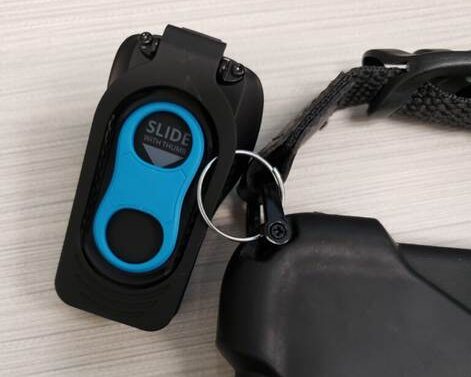
You can clip your Bluetooth speaker to your device so it doesn’t get lost and is always available. You can attach the speaker by doing one of the following:
- Turn the speaker over, then connect a split keyring (not included) to the clip on the back.
- Attach the split keyring to the metal D-ring on either side of your device. Don’t attach it to the cloth handle.
Still Stuck?
Our support teams are available Monday – Friday, 8 a.m. – 5 p.m. CST.
-
ableCARE Product Support
For technical issues related to QuickTalker Freestyle or assistive technology products.