


A force restart turns your QuickTalker Freestyle off and back on, even when the screen won’t respond to touch. The buttons you press depend on which model you have, so start by finding your model.
Find Your Model
Have a home button? If you have a small round button below your screen, you have a model with a home button.
- Follow the steps under “Force Restart a Model With a Home Button.”
Don’t have a home button? If you don’t see one, you have a model without a home button.
- Follow the steps for your QuickTalker Freestyle or QuickTalker Freestyle Mini below.
Force Restart QuickTalker Freestyle (No Home Button)
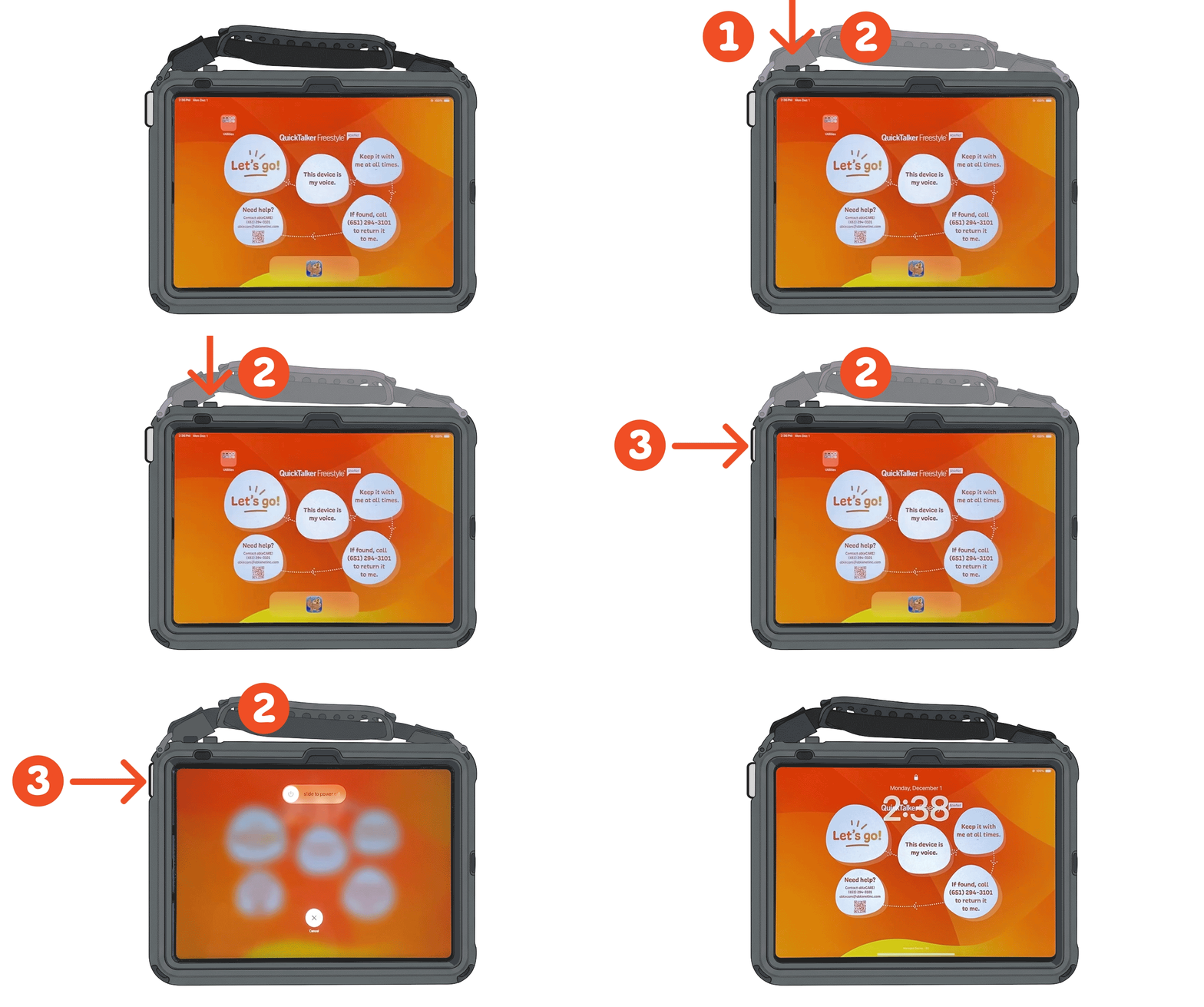
- Press and quickly release the Volume Down button on the left.
- Press and quickly release the Volume Up button on the right.
- Press and hold the Sleep/Wake/Power button.
- The screen will go black, then the Apple logo will appear. Ignore anything else that shows on the screen while you hold it.
- Release the Sleep/Wake/Power button when the Apple logo appears.
Force Restart QuickTalker Freestyle Mini (No Home Button)
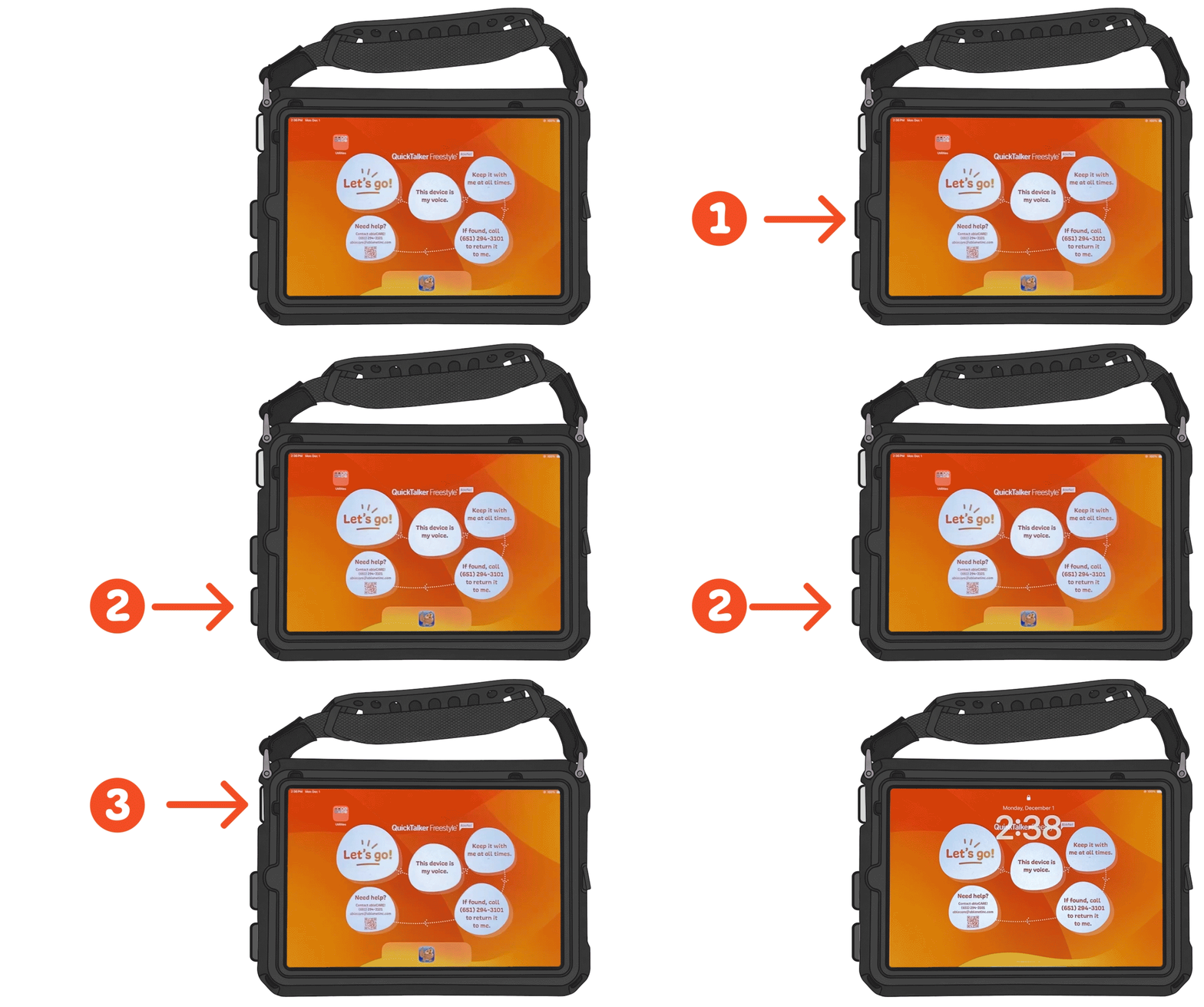
- Press and quickly release the Volume Up button.
- Press and quickly release the Volume Down button.
- Press and hold the Sleep/Wake/Power button.
- The screen will go black, then the Apple logo will appear. Ignore anything else that shows on the screen while you hold it.
- Release the Sleep/Wake/Power button when the Apple logo appears.
Force Restart a Model With a Home Button
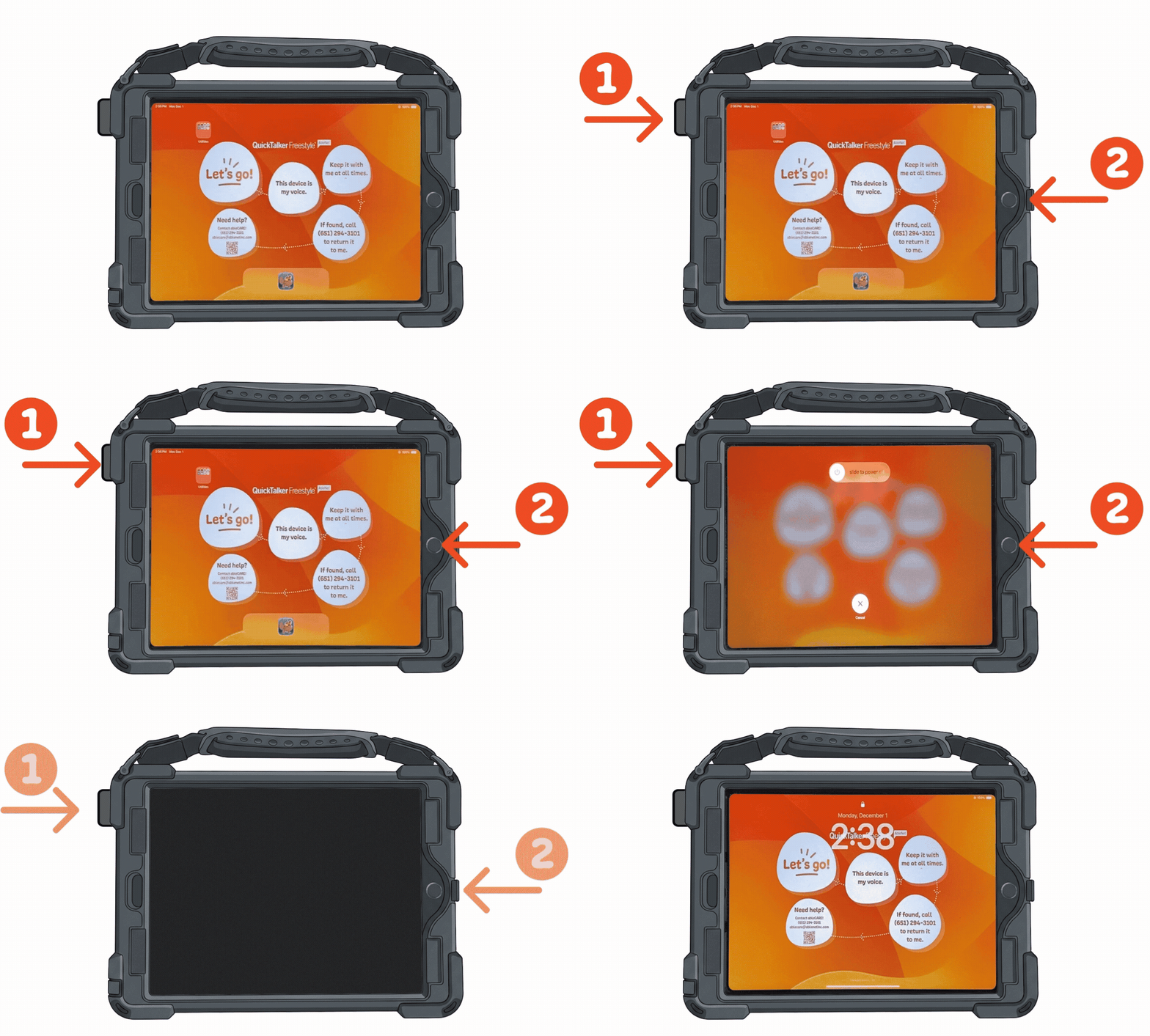
The process is the same for both the Standard and Mini QuickTalker Freestyle.
- Press and hold the Sleep/Wake/Power button and the Home button at the same time.
- Keep holding both buttons for about 15–20 seconds.
- The screen will go black, then the Apple logo will appear. Ignore anything else that shows on the screen while you hold them.
- Release both buttons when the Apple logo appears.
Still Stuck?
Our support teams are available Monday – Friday, 8 a.m. – 5 p.m. CST.
-
ableCARE Product Support
For technical issues related to QuickTalker Freestyle or assistive technology products.