
Connecting a Bluetooth Speaker for External Sound Output


Volume on your QuickTalker Freestyle too low to hear? For louder sound output, connect a Bluetooth speaker! This guide will walk you through the steps to connect a compatible Bluetooth speaker to your device.
Instructions🔗
You can use a personal Bluetooth speaker (check your compatibility with the ableCARE team) or submit an accessory request and receive one for free with your QuickTalker Freestyle 5-Year Warranty.
Pairing Bluetooth Speakers🔗
To pair a Bluetooth Speaker, please follow these instructions:
- Open Settings
- Select Bluetooth
- Find your Bluetooth speaker in the list of Other Devices, then tap on its name to pair it.
- Your Bluetooth speaker should now be paired with the QuickTalker Freestyle.
- You can test this by adjusting the device volume and activating a communication board cell to verify the sound is coming from the external speaker.
Some additional notes about this setup:
- The sound output will automatically switch to the paired Bluetooth speaker when it is turned on.
- If you want sound output through the speakers of your QuickTalker Freestyle, turn off the Bluetooth speaker. The sound output will automatically switch back over.
- If you no longer wish to use the Bluetooth speaker with the QuickTalker Freestyle, you can unpair the speaker in the same area in the device’s Settings app.
Attaching the Noxgear Bluetooth Speaker to the QuickTalker Freestyle🔗
If you’ve requested a Bluetooth Speaker through the accessory portal, you can attach it to your QuickTalker Freestyle using a split keyring (not included).
- First, you’ll connect the split keyring by flipping the speaker over and attaching it to the clip on the back of the speaker (See photo below).
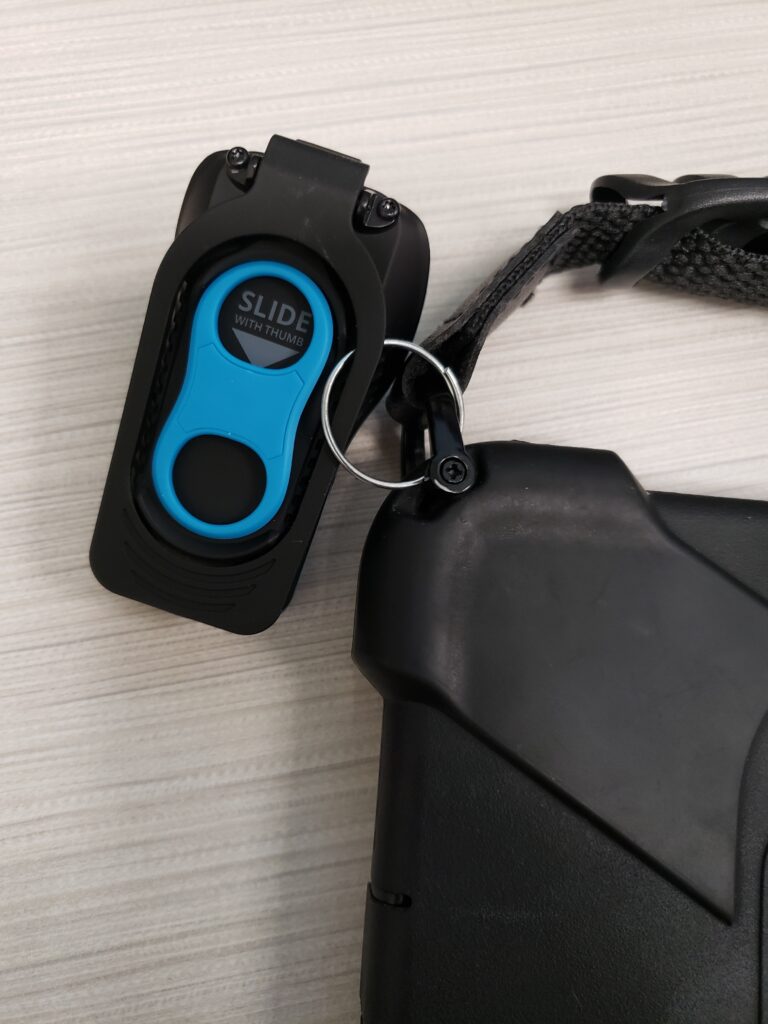
- Next, connect the split keyring to the D-Ring loop on the preferred side of your QuickTalker Freestyle. Be sure to attach it to the metal D-Ring loop and not the cloth handle.
- This will ensure that the speaker is always connected to your QuickTalker Freestyle and will minimize the risk of losing it.
Still Stuck? 🔗
The ableCARE Product Support Team is here to answer your technical questions!
Was this article helpful?
5 of 5 found this helpful
