
Troubleshooting – myableU


Troubleshooting Your myableU Dashboard🔗
Having trouble accessing your myableU dashboard or completing a course? This article covers common login issues, verification code delays, and missing courses—with clear solutions to help you get back on track.
In This Article
- Not Receiving Verification Code Email
- Not Receiving the Link to Take the Course Assessment
- Getting an “Invalid” Message When Logging In
- Missing a Course From Your Dashboard
- How to Log Into the myableU Portal
- What to Do When You Receive an “Invalid” Login Notification
- Creating a Second Account in myableU
- Accessing Your myableU Dashboard
Not Receiving Verification Code Email🔗
To log into myableU, you don’t need a password. Instead, you’ll receive a verification code via email each time you sign in. The code is sent to the email address tied to your myableU account and typically arrives within a minute or two.
Occasionally, the code may be delayed up to two hours. This issue appears to be more common with certain email providers like Yahoo or Verizon.
If you don’t receive your verification code:
- Check your spam or junk folder
- Add [email protected] to your safe sender list in your email.
- Try the login process again
If the issue persists, contact us at 651-294-3100 for assistance.
Not Receiving the Link to Take the Course Assessment🔗
After completing an ableU webinar, you’ll be able to take the course assessment to earn your continuing education units. The assessment can only be accessed through your myableU dashboard—we don’t send assessment links via email.
To access your assessment, you’ll need to follow the same login steps you used when you first registered. The verification code should arrive within a minute or two, though it may occasionally be delayed up to two hours. This delay is more common with certain email providers like Yahoo or Verizon.
If the issue persists, contact us at 651-294-3100 for assistance.
For detailed instructions on accessing your assessment, see the sections below: “How to Log Into the myableU Portal” and “Accessing Your myableU Dashboard.”
Getting an “Invalid” Message When Logging In🔗
If you see an “Invalid” error or a message saying your email is already in use, you may have a duplicate contact in the system.
You have two options:
- Create a new myableU account using a different email address (if you have one available)
- Contact us at 651-294-3100 and we’ll help resolve the duplicate account issue
For step-by-step instructions, see the sections below: “What to Do When You Receive an ‘Invalid’ Login Notification” and “Creating a Second Account in myableU.”
Missing a Course From Your Dashboard🔗
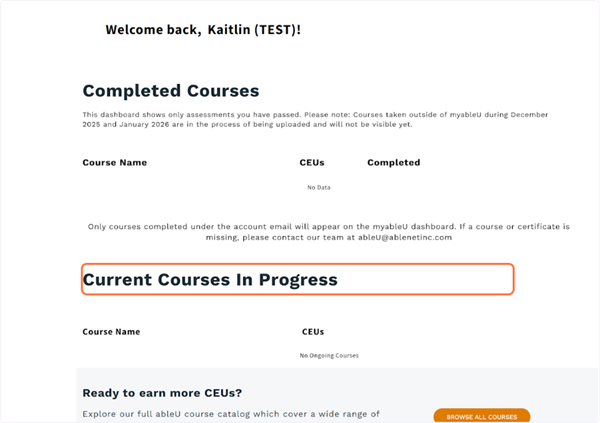
When you’re logged into your account, your myableU dashboard shows all of the courses you have taken or are currently taking.
Your dashboard has two sections:
- Completed Courses: View certificates and completion dates for courses you’ve finished
- Current Courses In Progress: Find upcoming courses and courses that need assessments. Click “Take Assessment” to complete your course and earn your CEUs.
If you don’t see a course you registered for, contact us at 651-294-3100 and we’ll help locate it.
How to Log Into the myableU Portal🔗
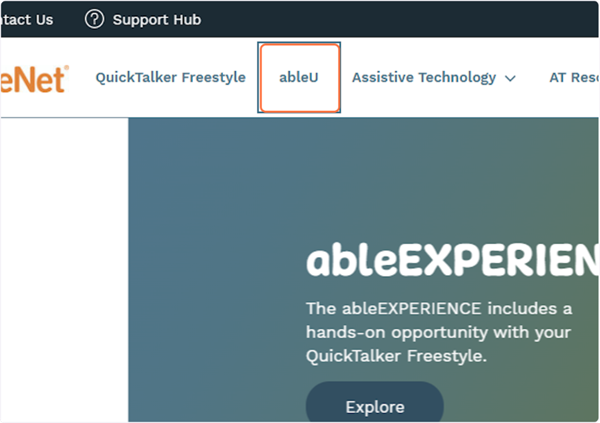
Step 1: Navigate to the ableU Page
To locate the myableU login screen, go to the AbleNet website and click on “ableU” in the main navigation.
Step 2: Click Sign In
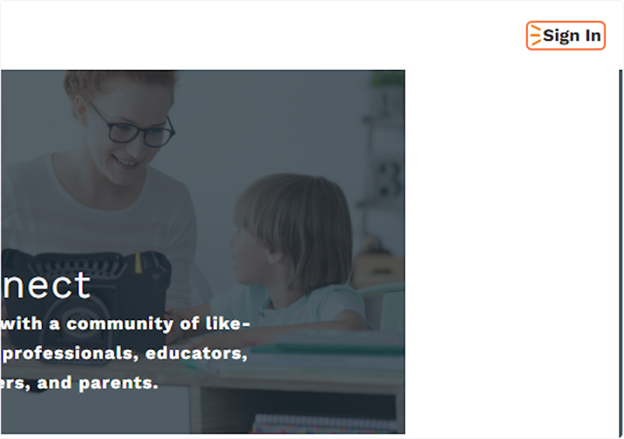
Once the ableU page appears, click “Sign In” in the upper right corner.
Step 3: Enter Your Email Address
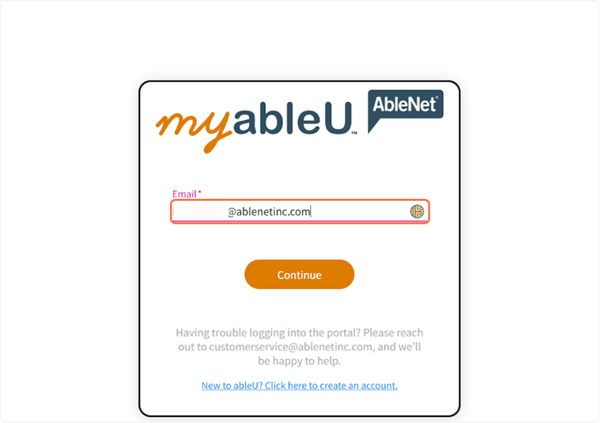
Enter your email address in the email field, then click continue.
Step 4: Enter Verification Code
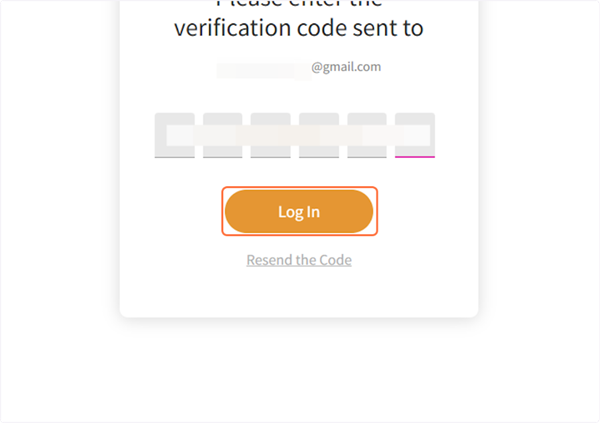
You should immediately receive a verification code at the email address you entered. Once you receive the code, enter it in the verification field and click “Log In.”
What to Do When You Receive an “Invalid” Login Notification🔗
If your email is already in the ableU system, you may see an “Invalid” login error when trying to sign in.
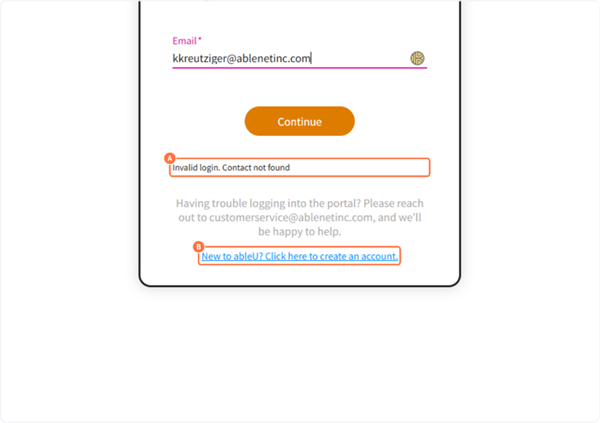
Step 1: Click to Create an Account
Click on “New to ableU? Click here to create an account.” link at the bottom of the window
Step 2: Fill Out the Registration Form
Enter the following information:
- First Name
- Last Name
- Answer any optional questions (if desired)
- School / Company Name
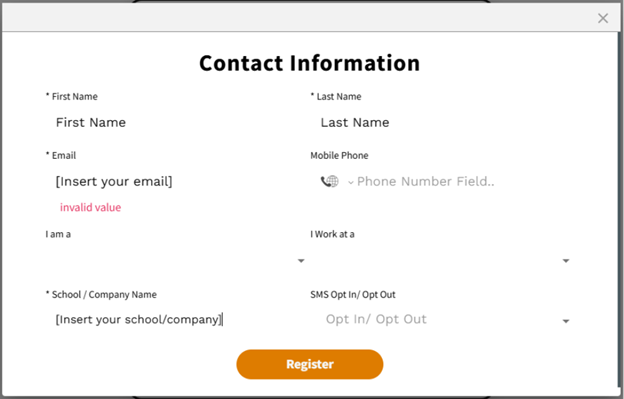
Step 3: Click Register
Click “Register” to submit your information.
Step 4: Check for Duplicate Account Message
If you receive the message “An account is already active with this email. Please sign in using this email,” return to the login screen and try logging in with your email again.
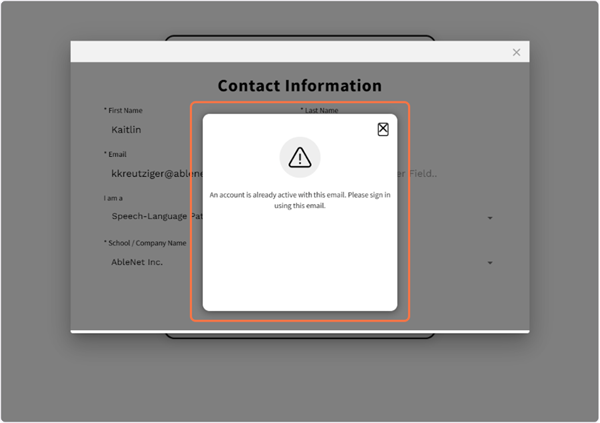
Step 5: Try Alternative Solutions
If the issue persists after several attempts, try creating a second account using a different email address (if you have one available). See the next section for instructions.
Creating a Second Account in myableU🔗
If you continue to not receive verification code emails or encounter “invalid” login errors, and you have access to a second email address, you can create a new myableU account.
Step 1: Register With a New Email Address
To register for a new account, enter your information using a new or second email address, then click “Register.”
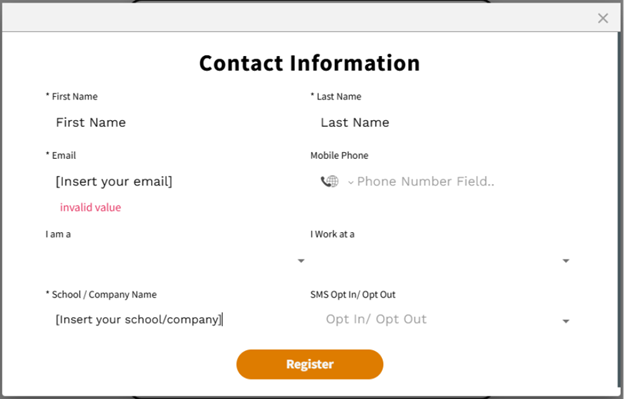
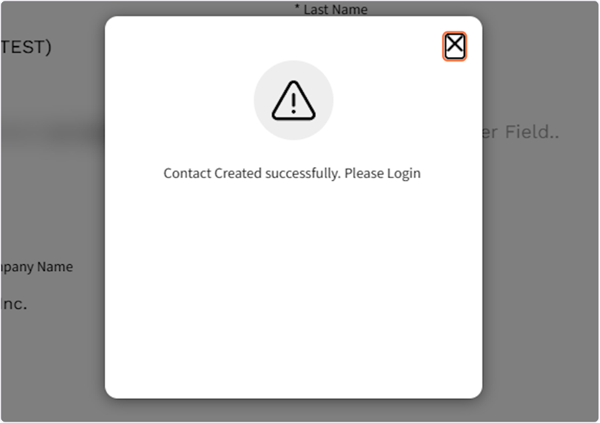
Step 2: Confirm Successful Account Creation
Once the account is created successfully, you’ll see a confirmation pop-up message.
Step 3: Return to Login Page
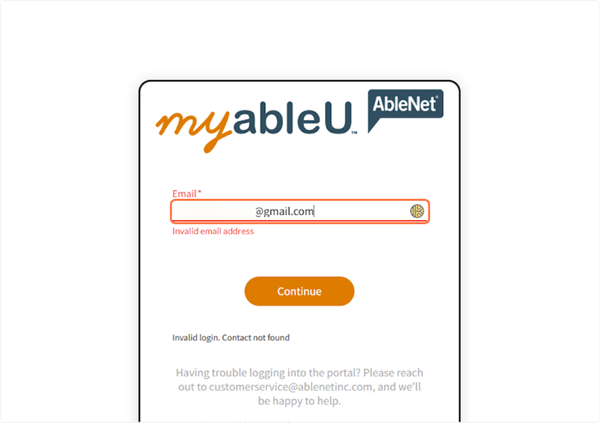
Back on the login page, enter the email address for the second account you just created and click continue.
Step 4: Enter Verification Code
You should immediately receive a verification code at your new email address. Once received, enter the code and click “Log In.”

Accessing Your myableU Dashboard🔗
Once you’ve successfully logged in, you can access your courses and assessments through your dashboard.
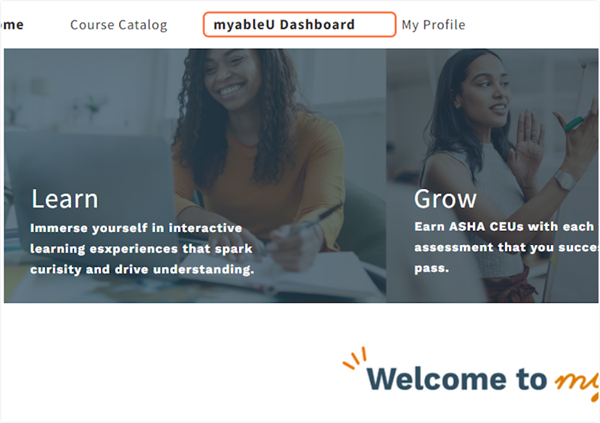
Step 1: Navigate to Your Dashboard
Once logged into the portal, click “myableU Dashboard” in the top menu.
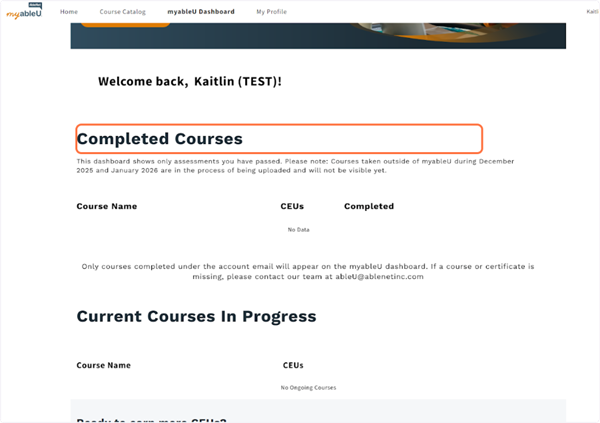
Step 2: View Completed Courses
Under the “Completed Courses” section, you can view the certificates and dates of your completed courses.
Step 3: Access Current Courses In Progress
Under the “Current Courses In Progress” section, you can locate upcoming courses and courses you need to complete an assessment for. Click the “Take Assessment” link to complete your course and earn your CEUs.
Need Additional Support?🔗
Our team is here to help with any myableU access issues.
Contact us at 651-294-3100, Monday through Friday, 8am to 5pm CT.
Was this article helpful?
0 of 0 found this helpful
