What is a Switch?


Switches are a useful tool that allows users with fine motor impairments to access environmental controls, deliver pre-recorded messages, or use a communication device. A switch is a button or sensor activated by a reliable, consistent body movement that is not too taxing on the body.
Which Switch is the Best Fit?
To determine which switch works best, you first need to identify the access point, which refers to the body part or movement a user will rely on to activate the switch. While many people picture a user hitting a switch with their hand, that is not always the case. Users may activate a switch by tilting their head, blinking their eyes, kicking it with their foot, or even twitching an elbow.
The access point will often help determine the type of switch. For example, a client who tilts their head slightly to the right or left may do well with a smaller switch such as the Jelly Bean or Specs. A client who activates a switch by moving their arm backward at the elbow may benefit from a switch with a larger surface area, like the Big Red, to help increase accuracy.
Switch sites and switch types are highly dependent on the individual. Identifying the right access point and the best switch is truly a team approach, typically made up of speech-language pathologists (SLPs), occupational therapists, physical therapists, parents, and assistive technology (AT) professionals.
Quick Guide to AbleNet Switches
AbleNet provides a variety of switch types including wireless, wired, sensitive proximity sensors, feather light touches, and more!
Wireless Switches
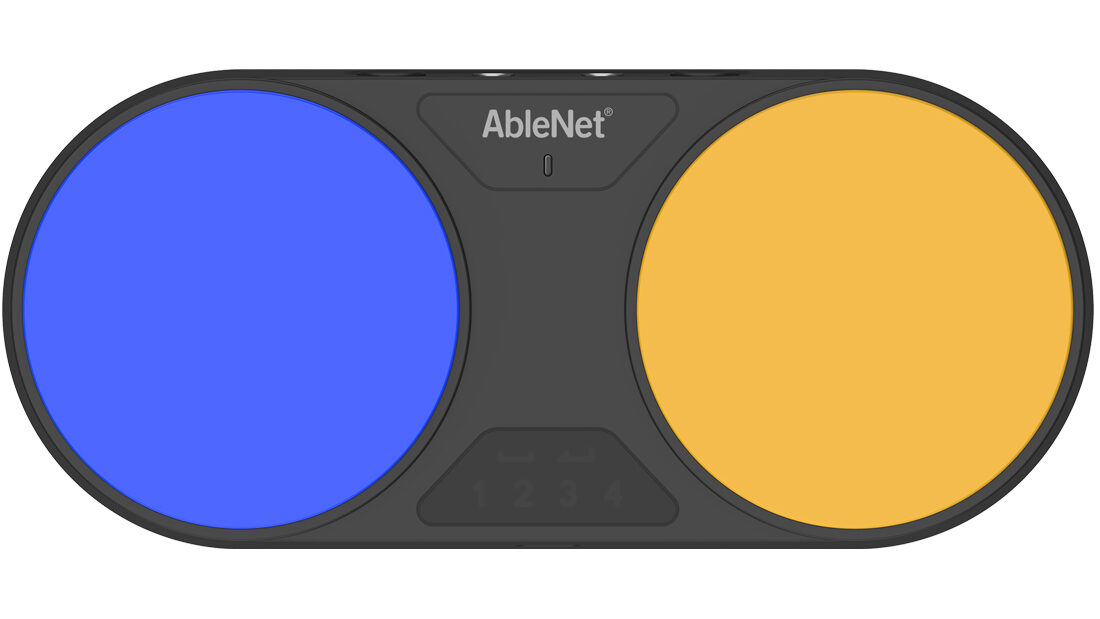
The Blue2FT is a wireless switch that connects to any device via Bluetooth. Due to the Bluetooth capability, users are able to access communication apps on our QuickTalker device or leisure activities on another iPad.
The Blue2FT is a proximity switch that can be set up for one-switch or two-switch scanning. There are also two switch ports on the back of the Blue2FT that allows you to plug in any of our wired switches. This might be considered if using two different body parts (e.g. both elbows) for step scanning or using a head activated switch.
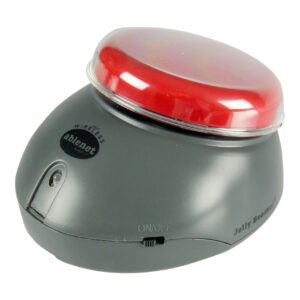
The Jelly Beamer and Wireless Receiver are another wireless option. Pair the receiver with a Jelly Beamer and plug the Wireless Receiver into any switch accessible device and you’re ready to go!
Wired Switches
Each of the switches below have a wire that allows for the switches to be plugged into various items via a 1/8-3.5-mm mono jack. They can be plugged into the Blue2FT, the Hitch2, Step-by-Step, Power Link, or switch toys. Each of the switches below do the same thing they are just different sizes.
- Micro Light Switch
- 1.7 inches in length, designed for a finger!
- Requires the least amount of pressure to activate.
- It is typically used for access points such as fingers or thumbs.
- Specs IC
- The smallest of the button switches measuring 1.3 inches
- Flexible mounting options.
- Possible access point – head or finger use.
- Jelly Bean
- Is a medium size switch that is 2.5 inches.
- Possible access point – head, hand, knee, foot, elbow etc.
- Buddy Button IC
- Medium switch with a 2.5 inch switch top
- Requires more force for activation than the Jelly Bean.
- Big Buddy Button
- Larger button at 4.5 inches.
- Requires more force for activation than the Jelly Bean.
- Big Red
- The biggest switch at 5 inches.
- Would be considered to ensure client has a larger target to access.
- Possible access point – hand, foot, elbow etc.
- Big Candy Corn 2
- Highly sensitive proximity sensory for activation.
- Anytime the user is near or touching the activation surface it will activate.
- Great for users with fine motor impairments.
- Pillow Switch
- Is a switch that has a soft foam surface that is 3.3 inches.
- This switch does require slightly more force for activation than the Jelly Bean.
- Can easily fastens to a pillow or wheelchair cushion with safety pin and Velcro, making it ideal for head switch access.
- Mini Cup Switch
- Very durable switch; resistant to dust and dirt.
- Can be submerged in water for up to 30 minutes!
- Features a click and tactile feedback when activated.
To learn how to use a switch for scanning, check out our What is Scanning article.
Still Stuck?
The ableCARE Product Support Team is here to help!